Developer's Guide to WCAG 2.1 AA: Code Fixes for ADA, AODA & EU EAA Compliance
One standard, three laws.
The ADA, AODA, and EU Accessibility Act all rely on WCAG 2.1 AA. Build your code to this one standard and you satisfy the technical requirements of all three. This guide gives you the copy-paste fixes, plus data on what fails most often across 1,025 real websites.
Scan your site free to see your WCAG violationsWhy developers own accessibility
Accessibility is often filed under “legal” or “design,” but the vast majority of issues are decided in code. A missing alt attribute, an unlabeled input, a div pretending to be a button, a focus ring stripped out in CSS — these are engineering decisions, and they are exactly what gets flagged in automated scans and demand letters alike.
The good news for developers: you do not need to learn three different legal regimes. The ADA (United States), the AODA (Ontario), and the European Accessibility Act (EU) all converge on a single technical yardstick — the Web Content Accessibility Guidelines, WCAG 2.1 Level AA. Meet that one standard in your markup, components, and interactions, and you have done the technical work for every one of them.
This is a practical accessibility developer guide: WCAG 2.1 code examples you can paste in, covering the issues that fail most often in real scans. We will cover the laws briefly for context, then spend the bulk of the guide on fixes.
ADA vs AODA vs EU EAA: the same standard underneath
Before the code, here is the context in one table. Notice the middle column — every law ultimately resolves to WCAG 2.1 AA (or a standard that contains it). That is the whole reason a single engineering effort works across all three.
| Law | Technical standard | Who it covers | Status / deadline |
|---|---|---|---|
| ADA (United States) | WCAG 2.1 AA (adopted for Title II; the common benchmark for Title III) | Businesses open to the public (Title III) and state/local government (Title II) | Title II: April 2027–2028 (by population, after the DOJ's 2026 extension). Title III: enforced continuously via litigation |
| AODA (Ontario, Canada) | WCAG 2.0 AA (most teams target 2.1 AA) | Public sector and private/non-profit orgs with 50+ employees | In force now; ongoing compliance reporting |
| EU EAA (European Union) | EN 301 549, which incorporates WCAG 2.1 AA | E-commerce, banking, transport, e-books and more — incl. non-EU sellers serving EU customers | In force since 28 June 2025 |
For the legal and deadline detail behind each, see our deep dives on ADA Title II vs Title III, AODA website compliance, and the EU Accessibility Act for e-commerce. This guide assumes you have read enough of the legal context to know you need WCAG 2.1 AA — and now you want the fixes.
One caveat worth knowing: WCAG 2.1 AA is necessary but not automatically sufficient for legal compliance. Conformance is a technical claim about your code; legal compliance also depends on real usability and documentation. But in engineering terms, WCAG 2.1 AA is the target, and it is where every audit starts.
How WCAG 2.1 is organized: POUR
WCAG groups its success criteria under four principles. Keeping these in mind makes the fixes below feel less like a checklist and more like a model you can reason from:
- Perceivable — users can perceive the content (text alternatives, contrast, captions).
- Operable — users can operate the interface (keyboard, focus, enough time, no traps).
- Understandable — content and operation are predictable (labels, errors, language).
- Robust — content works across browsers and assistive tech (valid, semantic markup).
Start with the scan data below to see what fails most often, then work through the fixes. They cover every issue in that table, plus the keyboard, focus and widget problems automated tools cannot detect.
A, AA, AAA: which conformance level do you actually need?
WCAG defines three conformance levels, and the distinction directly shapes what you build. Each higher level includes everything below it, so they stack rather than compete.
- Level A — the floor. Captions for prerecorded video, keyboard operability, no keyboard traps, no content that flashes more than three times a second. Necessary, but never sufficient on its own.
- Level AA — the legal target. Adds contrast minimums, resize and reflow, consistent navigation, status messages, and meaningful labels. This is the level ADA case law, the AODA, and the EU EAA all expect.
- Level AAA — the gold standard. Enhanced contrast (7:1), sign-language interpretation for video, context-sensitive help, no interruptions. Rarely required wholesale; cherry-pick the criteria that genuinely help your users.
The short answer: build to AA. Targeting only Level A leaves you legally exposed; demanding AAA across an entire site is impractical and is not what the regulations require for most organizations. AA is the line every audit draws.
The most common accessibility issues: data from 1,025 websites
We took the latest scan of every website run through WCAGsafe between March and September 2026, which came to 1,025 sites, and counted how many had each issue. Every issue in the table links to its fix further down this guide.
| Rank | Issue | WCAG | Level | Sites affected |
|---|---|---|---|---|
| 1 | Low color contrast | 1.4.3 | AA | 46.9% (481) |
| 2 | Links with no accessible name | 2.4.4, 4.1.2 | A | 38.8% (398) |
| 3 | Touch targets under 44×44px | 2.5.5 | AAA | 34.5% (354) |
| 4 | Images with no text alternative | 1.1.1 | A | 20.1% (206) |
| 5 | Skipped heading levels | Best practice (1.3.1) | — | 14.0% (143) |
| 6 | Iframes with no title | 4.1.2 | A | 12.2% (125) |
| 7 | Buttons with no accessible name | 4.1.2 | A | 10.3% (106) |
| 8 | Generic link text ("click here") | 2.4.4 | A | 9.9% (101) |
| 9 | ARIA attributes the element does not support | 4.1.2 | A | 9.5% (97) |
| 10 | Zoom disabled in the viewport meta tag | 1.4.4 | AA | 7.7% (79) |
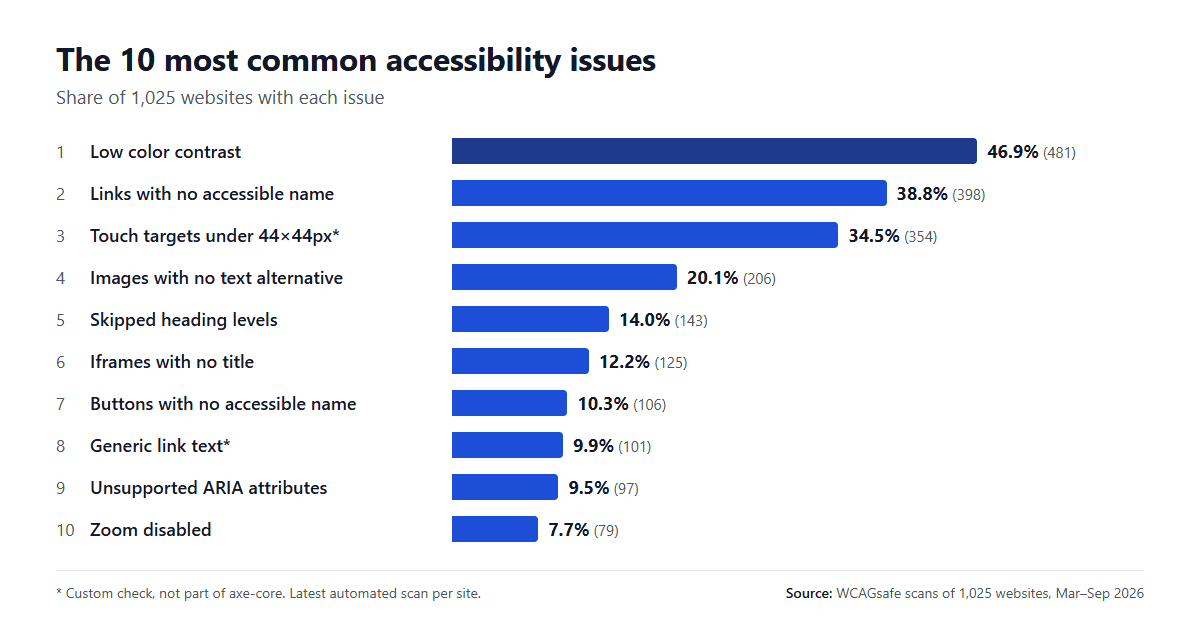
Three of the top ten are one mistake on different elements: a link, a button or an iframe that assistive tech cannot name. The usual cause is an icon with no text label, or an embed pasted in without a title. Each takes one attribute to fix. The touch target check uses the 44×44px size from WCAG 2.5.5 (AAA), so not every flagged site fails the 24×24px minimum that WCAG 2.2 sets at AA.
Ranks 11 to 20: personal-data inputs missing autocomplete (7.5%), ARIA attributes used where they are prohibited (6.7%), alt text that is a filename or placeholder (6.5%), links inside text marked only by color (5.9%), interactive controls nested inside each other (5.7%), broken list markup (5.1%, plus 3.4% for stray <li> elements), ARIA widgets missing required child roles (5.0%), no lang on <html> (4.2%), and form inputs with no label (4.0%).
For scale, the WebAIM Million 2026 found low contrast on 83.9% of the top one million home pages and missing alt text on 53.1%. Our rates are lower partly because axe-core only reports a contrast failure when it can measure both colors (text over images and gradients is left for manual review), and partly because the two samples are different.
How we counted: one scan per site (the most recent completed one), with a site counted once per issue if any scanned page had it. Scans combine axe-core with WCAGsafe's own checks for touch target size, generic link text, alt text quality, heading order and autocomplete. The image row combines axe's image text alternative rules. These are sites our users and our team chose to scan, not a random sample of the web, and automated testing finds only part of what WCAG requires.
1. Text alternatives for images (WCAG 1.1.1)
Missing alt text is one of the most common failures on the web. Every <img> needs an alt attribute. Informative images describe their purpose; decorative images get an empty alt so screen readers skip them.
✗ Fails WCAG
<img src="chart.png">
<img src="logo.png" alt="logo.png">
<img src="divider.png" alt="decorative line">
✓ Passes WCAG
<img src="chart.png" alt="Federal website accessibility lawsuits rose 27% in 2025">
<img src="logo.png" alt="WCAGsafe home">
<img src="divider.png" alt="">- Describe purpose, not appearance. For a chart, state the takeaway.
- Use
alt=""(empty, not missing) for purely decorative images. - Never use the file name or the word “image” as alt text.
- For an
<img>inside a link, the alt text should describe the link destination.
Automation catches a missing alt attribute, but only a human can judge whether the alt text is meaningful. That gap is why manual review matters — more on that below.
2. Color contrast (WCAG 1.4.3) — with examples
Low contrast is the single most common WCAG failure. The rule for Level AA: text needs a contrast ratio of at least 4.5:1 against its background, or 3:1 for large text (24px, or 18.66px bold). Non-text UI like icons and input borders needs 3:1 (WCAG 1.4.11). For a non-code walkthrough of the ratios, exceptions, and the most common failures, see our ADA color contrast requirements guide.
✗ Fails (2.6:1)
.btn {
  color: #9aa0a6;        /* light gray */
  background: #ffffff;
}
/* ratio 2.6:1 — fails AA */
✓ Passes (17.4:1)
.btn {
  color: #1a1a1a;        /* near-black */
  background: #ffffff;
}
/* ratio 17.4:1 — passes AA & AAA */- Test pairs with the WebAIM Contrast Checker or your browser's DevTools contrast tooltip.
- Watch text over images and gradients — add a solid overlay or text shadow scrim.
- Do not rely on color alone (WCAG 1.4.1). Pair error states with an icon or text, not just red.
- Bake contrast tokens into your design system so it cannot regress component by component.
3. Accessible form labels & errors (WCAG 1.3.1, 3.3.1, 3.3.2)
Placeholders are not labels — they vanish on input and fail contrast. Every control needs a programmatically associated label, and errors must be announced, not just colored red.
✗ Fails WCAG
<input type="email" placeholder="Email">

<!-- error shown only in red text -->
<span class="error">Invalid</span>
✓ Passes WCAG
<label for="email">Email address</label>
<input id="email" type="email"
  autocomplete="email"
  aria-describedby="email-err" required>

<span id="email-err" role="alert">
  Enter a valid email, e.g. you@site.com
</span>- Tie label to input via
for/id, or wrap the input in the<label>. - Link errors with
aria-describedbyand expose them withrole="alert"so they are announced. - Add
autocompletetokens (WCAG 1.3.5) so browsers can autofill identity fields. - Describe how to fix an error, not just that one occurred.
4. Keyboard accessibility (WCAG 2.1.1, 2.1.2)
Everything you can do with a mouse must work with a keyboard. The most common offender: a <div> with an onClick handler acting as a button. It is not focusable, not operable with Enter/Space, and invisible to assistive tech.
✗ Fails WCAG
<div class="btn" onclick="submit()">
  Submit
</div>
✓ Passes WCAG
<button type="button" onclick="submit()">
  Submit
</button>

<!-- If you truly cannot use <button>: -->
<div role="button" tabindex="0"
  onclick="submit()"
  onkeydown="if(event.key==='Enter'||event.key===' '){
    event.preventDefault(); submit();
  }">
  Submit
</div>- Use native
<button>,<a>, and form controls — they are focusable and operable for free. - Tab through every page. Can you reach and activate everything? Can you get back out (no keyboard traps, WCAG 2.1.2)?
- Keep DOM order logical so focus order (WCAG 2.4.3) matches the visual order.
- Never put
tabindexvalues above 0 — it scrambles focus order.
5. Visible focus indicators (WCAG 2.4.7)
A keyboard user must always be able to see where they are. Stripping the focus outline with outline: none and never replacing it is one of the most damaging one-line accessibility mistakes.
✗ Fails WCAG
*:focus {
  outline: none;   /* never do this alone */
}
✓ Passes WCAG
:focus-visible {
  outline: 3px solid #2563eb;
  outline-offset: 2px;
  border-radius: 2px;
}
:focus-visible shows the ring for keyboard users without flashing it on mouse clicks — the best of both worlds. Make sure the indicator itself meets 3:1 contrast against adjacent colors.
6. Semantic HTML, headings & landmarks (WCAG 1.3.1, 2.4.1, 2.4.6)
Screen reader users navigate by landmarks and headings, not by scrolling. A page built from generic <div>s gives them nothing to grab onto. Use real structural elements and a logical heading order.
✗ Fails WCAG
<div class="top">...</div>
<div class="menu">...</div>
<div class="main">
  <div class="title">Pricing</div>
  <div class="big">Plans</div>
</div>
✓ Passes WCAG
<header>...</header>
<nav aria-label="Primary">...</nav>
<main>
  <h1>Pricing</h1>
  <h2>Plans</h2>
</main>
<footer>...</footer>- Exactly one
<h1>per page; never skip heading levels for styling. - Use
<header> <nav> <main> <footer>landmarks; addaria-labelwhen you have more than one of a kind. - Use ordered/unordered lists for lists, and
<table>with<th>for tabular data.
Staring down a long list of violations?
Skip the dev work — our team fixes the WCAG 2.1 AA issues for you with real code changes plus manual testing, not an overlay.
Let our experts fix it for you7. ARIA best practices (WCAG 4.1.2)
The first rule of ARIA is: don't use ARIA if a native element will do. Bad ARIA is worse than no ARIA — it actively lies to assistive technology. Reach for it only to fill genuine gaps (custom widgets, live updates, accessible names where no visible label exists).
✗ Fails WCAG
<!-- redundant/conflicting roles -->
<button role="button" aria-label="Close">
  <span aria-hidden="false">×</span>
</button>
<div role="link">Go</div>
✓ Passes WCAG
<!-- native element, icon hidden, name supplied -->
<button type="button" aria-label="Close dialog">
  <span aria-hidden="true">×</span>
</button>
<a href="/go">Go</a>- Give icon-only controls an accessible name with
aria-label. - Hide purely decorative icons from screen readers with
aria-hidden="true". - If you build a custom widget, follow the ARIA Authoring Practices pattern for its full keyboard and state model.
- Only use ARIA attributes the element's role supports.
aria-selectedbelongs onrole="tab"orrole="option", not on a nav<li>. To mark the current page in a menu, usearia-current="page"on the link.
8. Skip links (WCAG 2.4.1)
Keyboard and screen reader users should not have to tab through your entire nav on every page. A skip link — visually hidden until focused — lets them jump straight to the content.
✗ Fails WCAG
<!-- no way past the nav -->
<nav>... 30 links ...</nav>
<main>...</main>
✓ Passes WCAG
<a href="#main" class="skip-link">
  Skip to main content
</a>
<nav>... 30 links ...</nav>
<main id="main" tabindex="-1">...</main>
Style .skip-link off-screen by default and bring it into view on :focus — exactly the pattern this very page uses at the top of its markup.
9. Accessible modals & dialogs (WCAG 2.1.2, 4.1.2)
Custom modals are a frequent failure point: focus escapes to the page behind them, Escape does nothing, and screen readers never hear them open. Either use the native <dialog> element or implement the full pattern.
✗ Fails WCAG
<div class="modal">
  <div class="modal-body">...</div>
</div>
<!-- focus stays on the page, no role,
     Escape ignored, no focus trap -->
✓ Passes WCAG
<dialog id="quote" aria-labelledby="quote-title">
  <h2 id="quote-title">Request a quote</h2>
  <button>Close</button>
</dialog>

<script>
  // open + move focus in; Esc closes;
  // focus returns to the trigger on close
  quote.showModal();
</script>- Move focus into the dialog on open and trap it there while open.
- Close on Escape and return focus to the element that opened it.
- The native
<dialog>withshowModal()handles most of this for you.
10. Dynamic content & live regions (WCAG 4.1.3)
When content updates without a page load — a cart count, a search result count, a toast notification — screen reader users get no signal unless you provide one. Live regions announce changes politely.
✗ Fails WCAG
<!-- updates silently -->
<span id="cart">3 items</span>
✓ Passes WCAG
<span id="cart" aria-live="polite">
  3 items
</span>

<!-- urgent messages -->
<div role="alert">Payment failed</div>- Use
aria-live="polite"for non-urgent updates,role="alert"for urgent ones. - The live region must exist in the DOM before you update it, or the change may not be announced.
11. Quick wins: language, titles, links & targets
A cluster of small, high-frequency fixes that take minutes each:
✗ Fails WCAG
<html>
<title>Home</title>
<a href="/r">Read more</a>
<a href="/s" style="padding:2px">Buy</a>
✓ Passes WCAG
<html lang="en">
<title>Pricing — WCAGsafe</title>
<a href="/r">Read the WCAG 2.2 changes</a>
<a href="/s" style="padding:12px 16px">Buy</a>- Language (3.1.1): set
<html lang>so screen readers use the right pronunciation. - Page title (2.4.2): unique, descriptive
<title>per page. - Link purpose (2.4.4): the link text, together with its surrounding sentence, must make the destination clear. Text that stands on its own is the safer habit — avoid “click here” and “read more.”
- Target size: WCAG 2.1 AA sets no minimum, but WCAG 2.2 adds a 24×24px minimum at AA (2.5.8). Generous padding clears it easily.
- Frames (4.1.2): give every
<iframe>atitlethat says what is inside, e.g.title="Map of our store location". - Zoom (1.4.4): never add
maximum-scale=1oruser-scalable=noto the viewport meta tag. It blocks pinch-zoom for people with low vision. - Media (1.2.2 / 1.2.5): captions for video, transcripts for audio.
12. Accessible component patterns
Custom widgets are where most teams lose accessibility, because the browser gives you nothing for free once you leave native elements. Each interactive pattern has an expected role, state, and keyboard model defined in the ARIA Authoring Practices Guide (APG). Here are the four you will build most often.
Disclosure (show / hide)
The simplest interactive pattern — a button that toggles a panel. The key is aria-expanded and aria-controls.
<button aria-expanded="false" aria-controls="ship">
  Shipping & returns
</button>
<div id="ship" hidden>
  Free returns within 30 days...
</div>
// JS: toggle [hidden] and flip aria-expanded on click
Accordion
An accordion is a stack of disclosures, each header a <button> inside a heading so screen reader users can jump between sections.
<h3>
  <button aria-expanded="true" aria-controls="sec1">
    Billing
  </button>
</h3>
<div id="sec1" role="region" aria-labelledby="...">
  ...panel...
</div>
Tabs
Tabs need roles (tablist, tab, tabpanel), a single tab in the tab order, and arrow-key navigation between tabs.
<div role="tablist" aria-label="Account">
  <button role="tab" id="t1" aria-selected="true"
          aria-controls="p1">Profile</button>
  <button role="tab" id="t2" aria-selected="false"
          aria-controls="p2" tabindex="-1">Billing</button>
</div>
<div role="tabpanel" id="p1" aria-labelledby="t1">...</div>
<div role="tabpanel" id="p2" aria-labelledby="t2" hidden>...</div>
// Arrow keys move selection; only the active tab is tabbable
Menu button / dropdown
<button aria-haspopup="true" aria-expanded="false"
        aria-controls="menu">Options</button>
<ul role="menu" id="menu" hidden>
  <li role="menuitem" tabindex="-1">Edit</li>
  <li role="menuitem" tabindex="-1">Delete</li>
</ul>
// Open on click/Down; arrow keys move; Esc closes & restores focus
Data tables
Use a real <table> with a <caption> and scope on headers so screen readers can associate each cell with its row and column.
<table>
  <caption>Q1 lawsuit filings by state</caption>
  <thead>
    <tr><th scope="col">State</th><th scope="col">Filings</th></tr>
  </thead>
  <tbody>
    <tr><th scope="row">California</th><td>1,240</td></tr>
  </tbody>
</table>
For dropdown selects, a native <select> is almost always the right call — the custom combobox is the single hardest widget to get right. If you must build one, implement the full APG combobox pattern and test it with a real screen reader.
Framework notes: React, Vue & Angular
Single-page apps introduce accessibility gaps that server-rendered sites do not. The same WCAG criteria apply — the failure modes just look different.
React
- Use
htmlFor(notfor) on labels and real<button>elements, not clickable<div>s. - Route changes do not move focus or announce themselves. On navigation, move focus to the new
<h1>and update the document title. - Lint with
eslint-plugin-jsx-a11yto catch issues in the editor.
Vue
- Manage focus across
v-iftransitions; restore focus when dialogs and menus unmount. - Use
vue-axein development and add focus handling to your Vue Router navigation guards.
Angular
- Angular CDK's
a11ymodule gives youFocusTrap,LiveAnnouncer, and focus monitoring out of the box. - Announce route changes with
LiveAnnouncerand manage focus in your Router events.
A worked example: remediating a product card
Individual rules are easy to nod along to; the real skill is seeing them stack up in one component. Here is a typical e-commerce product card that fails five criteria at once — and the fixed version.
✗ 5 violations
<div class="card" onclick="go()">
  <img src="shoe.png">
  <div class="badge">SALE</div>
  <div class="name">Runner X</div>
  <div class="price" style="color:#bbb">
    $89
  </div>
</div>
✓ Remediated
<article class="card">
  <a href="/p/runner-x">
    <img src="shoe.png" alt="Runner X trainers, blue">
    <span class="badge">On sale</span>
    <h3>Runner X</h3>
    <p class="price" style="color:#1a1a1a">
      $89
    </p>
  </a>
</article>
What changed, and which criterion each fix satisfies:
- The clickable
<div>became a real<a>— now keyboard-focusable and operable (2.1.1), and announced to assistive tech as a link instead of plain text (4.1.2). - The image got meaningful
alttext describing the product (1.1.1). - The price color moved from
#bbb(fails) to near-black (passes 1.4.3). - The product name is a real
<h3>, giving the card structure in the heading outline (1.3.1).
Prioritize like an auditor
You will rarely fix everything at once. Triage the way an auditor — or a plaintiff's attorney — reads a scan: by how badly an issue blocks a real user from completing a task.
- Fix first (blockers): keyboard traps, unlabeled controls in checkout / sign-up / search, images that carry essential information, and body-text contrast failures. These are the issues that appear in demand letters.
- Fix next (serious): missing focus indicators, illogical focus order, vague link text, and inaccessible custom widgets on key pages.
- Then (moderate): heading-order gaps, decorative images missing empty alt, minor contrast on non-essential UI, and redundant ARIA.
Weight by traffic, too: a violation on your highest-traffic template (a product page, the homepage hero, the checkout form) affects far more users than the same bug on a buried page. Fix the high-traffic, high-severity intersection first.
Build accessibility into your workflow
One-off cleanups regress the moment someone ships a new feature. The teams that stay compliant bake checks into the pipeline so issues are caught before they reach production:
- Lint as you type —
eslint-plugin-jsx-a11y(React) oreslint-plugin-vuejs-accessibility(Vue) flag missing alt and labels in the editor. - Test in CI — run axe via
jest-axeon components or@axe-core/playwrighton full pages; fail the build on new violations. - Catch it in review — the Storybook a11y addon surfaces issues per component during design review.
- Define done — add “keyboard operable, labeled, AA contrast” to your definition of done so accessibility is acceptance criteria, not an afterthought.
- Monitor production — schedule recurring scans so new content and third-party embeds do not silently reintroduce failures.
Automation in the pipeline still only covers the machine-detectable 30–40%. Keep a recurring manual pass on the calendar for the rest — especially after major releases.
Testing: automated catches ~40%, you do the rest
This is the most important thing to internalize as a developer: automated tools reliably detect only about 30–40% of WCAG success criteria. They are excellent at the machine-checkable rules — missing alt attributes, contrast ratios, missing labels, invalid ARIA. They cannot judge whether your alt text is meaningful, whether focus order makes sense, or whether a screen reader user can actually complete checkout.
A realistic WCAG 2.1 AA workflow:
- Automated — run axe-core (via WCAGsafe, your CI, or DevTools) to clear the machine-detectable failures fast. To check pages while you build, including staging and logged-in pages, use our free accessibility checker Chrome extension.
- Keyboard — unplug the mouse. Tab through every flow; verify visible focus, logical order, and no traps.
- Screen reader — test key journeys with VoiceOver (macOS/iOS) or NVDA (Windows).
- Zoom & reflow — zoom to 200% and 400%; content should reflow without horizontal scrolling (WCAG 1.4.10).
For the full non-developer-friendly walkthrough of the most common issues, see How to Fix WCAG Violations. If you are weighing 2.1 against the newer spec, read WCAG 2.2 vs 2.1: What Changed.
From code fixes back to ADA, AODA & EU EAA
Ship the fixes above and you have addressed the criteria behind the most frequent automated failures. Because WCAG 2.1 AA is the shared technical core:
- ADA (US): the DOJ's Title II rule adopts WCAG 2.1 AA, and it is the benchmark courts and settlements most often use for Title III websites.
- AODA (Ontario): requires WCAG 2.0 AA; building to 2.1 AA exceeds it and future-proofs you.
- EU EAA: EN 301 549 incorporates WCAG 2.1 AA for web content.
Remember the caveat from earlier: conformance is the technical foundation, not a legal guarantee. Pair your code work with real testing and documentation. WCAGsafe is not a law firm and this guide is not legal advice.
See your WCAG 2.1 AA violations in 60 seconds
WCAGsafe scans your site with axe-core and returns a prioritized, developer-ready list of violations with fix instructions — free. Short on time? Our team can remediate them for you.
Frequently asked questions
What is WCAG 2.1 AA and why do developers need it?
WCAG 2.1 Level AA is the internationally recognized technical standard for web accessibility, published by the W3C. It is the level the DOJ adopted for ADA Title II websites, the benchmark most often used for ADA Title III, and it meets or exceeds the web requirements of the AODA in Ontario and the European Accessibility Act in the EU. Because all three point to the same standard, developers who build to WCAG 2.1 AA cover the web content requirements of all three at once.
Do ADA, AODA, and the EU EAA all use WCAG 2.1 AA?
In practice, yes. The DOJ Title II rule adopts WCAG 2.1 AA for state and local government websites; private businesses under Title III have no adopted technical standard, but courts and settlement agreements commonly use WCAG 2.1 AA as the benchmark. The AODA requires WCAG 2.0 AA, and most organizations target 2.1 AA to stay current. The EU EAA relies on the harmonized standard EN 301 549, which incorporates WCAG 2.1 AA for web content. Building to WCAG 2.1 AA covers the web requirements of all three.
What are the most common WCAG violations developers introduce?
In our scans of 1,025 websites (latest scan per site, March to September 2026), the most common were low color contrast (46.9% of sites), links with no accessible name (38.8%), touch targets under 44×44px (34.5%), and images with no text alternative (20.1%). The WebAIM Million, which tests the top one million home pages every year, finds the same core problems: low contrast, missing alt text, missing form labels, and empty links and buttons. Nearly all of them are preventable in code.
Can automated tools find every WCAG 2.1 AA issue?
No. Automated scanners reliably detect roughly 30 to 40 percent of WCAG success criteria — things like missing alt attributes and contrast ratios. The rest, including keyboard operability, focus order, meaningful alt text, and screen reader experience, require manual testing by a human.
Is WCAG 2.1 AA different from 2.2 AA?
WCAG 2.2 adds nine new success criteria on top of 2.1, six of them at Level A or AA (focus not obscured, dragging movements, target size, consistent help, redundant entry, and accessible authentication), and removes one (4.1.1 Parsing). It is backward compatible — meeting 2.2 AA means you also meet 2.1 AA. Most regulations still reference 2.1 AA today, so it remains the practical baseline.
How do I test my site against WCAG 2.1 AA?
Start with an automated scan (WCAGsafe uses axe-core, the same engine behind Chrome DevTools) to catch the machine-detectable issues fast. Then do manual checks: navigate the whole site with only a keyboard, verify visible focus, and test key flows with a screen reader such as VoiceOver or NVDA.
Does using semantic HTML alone make my site compliant?
Semantic HTML is the single highest-leverage thing you can do — it gives you keyboard operability, roles, and structure for free — but it is not the whole picture. You still need sufficient color contrast, labeled form controls, focus management for custom widgets, captions for media, and meaningful alt text. Semantic markup is the foundation, not the finished building.
How long does it take to fix WCAG violations?
Content-level fixes (alt text, link text, labels) take minutes each. Code-level fixes such as keyboard handling, focus management, and ARIA on custom widgets typically take a few hours per pattern. Full remediation of a small-to-medium site usually runs from a few days to a few weeks, depending on how many custom components and templates are involved.
Are accessibility overlays a shortcut to WCAG compliance?
No. Overlay widgets sit on top of your existing code and do not fix the underlying violations — courts and accessibility experts have widely criticized them, and many sites running overlays have still been sued. The durable path is fixing the HTML, CSS, and components themselves, exactly as this guide describes.