ADA Color Contrast Requirements: What They Are and How to Fix Them
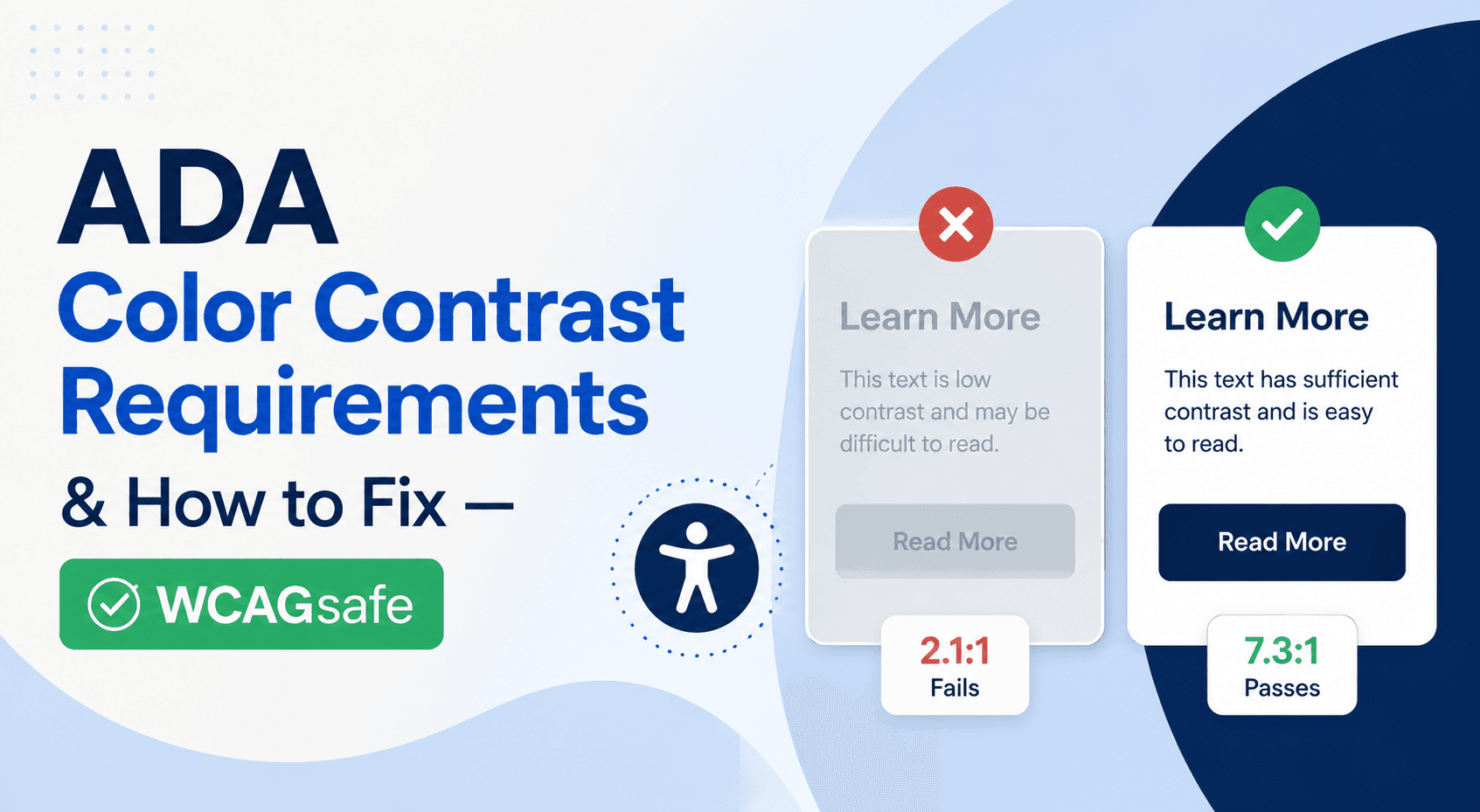
Low-contrast text is the #1 cited accessibility violation on the web.
It appears on roughly 4 out of 5 home pages, and it is one of the first things scanned in an ADA lawsuit. The good news: it is also one of the easiest violations to fix. This guide shows you exactly how.
Scan your site free to find contrast failuresWhat Is ADA Color Contrast (and Why It's the #1 Cited Violation)
"Color contrast" is the measurable difference in brightness between text (or a graphic) and the color behind it. It is expressed as a ratio, from 1:1 (identical colors, invisible) to 21:1 (pure black on pure white). The higher the ratio, the easier the content is to read — especially for people with low vision, color blindness, or age-related sight loss, and for everyone squinting at a phone in bright sunlight.
The ADA (Americans with Disabilities Act) does not itself print a contrast number in its text. Instead, U.S. courts and the Department of Justice consistently point to the Web Content Accessibility Guidelines (WCAG) Level AA as the practical benchmark for whether a website is "accessible." So when people say "ADA color contrast requirements," they mean the specific WCAG contrast ratios — 4.5:1 for normal text and 3:1 for large text — that a court would use to judge your site. If you want the broader picture, our guide to fixing the most common WCAG violations covers contrast alongside alt text, form labels, and keyboard access.
Why is contrast the most cited violation of them all? Two reasons. First, it is genuinely everywhere. The annual WebAIM Million study — an automated analysis of the top one million home pages — has found low-contrast text on roughly 79–83% of pages every year it has run, making it the most common failure by a wide margin. Second, it is trivially easy for automated tools to detect with certainty. A scanner does not have to interpret meaning or judgment; it just does the math on two colors. That combination — extremely common and machine-verifiable — is exactly why it dominates both accessibility audits and the demand letters that follow. The only violation cited as often is missing alt text on images, which shares the same "common plus easy to prove" profile.
The Exact WCAG Contrast Ratios Required
Here is the complete set of contrast requirements. For ADA purposes, Level AA is the target — it is what courts reference. Level AAA is stricter and generally optional for private businesses.
| What you're measuring | AA (required) | AAA | WCAG |
|---|---|---|---|
| Normal text (under 18pt / 24px) | 4.5:1 | 7:1 | 1.4.3 / 1.4.6 |
| Large text (18pt/24px, or 14pt/18.66px bold) | 3:1 | 4.5:1 | 1.4.3 / 1.4.6 |
| UI components & graphical objects (icons, form borders, focus rings) | 3:1 | — | 1.4.11 |
| Logos and incidental/disabled text | Exempt | Exempt | 1.4.3 |
Normal text: 4.5:1
Any text smaller than 18 point (roughly 24 pixels) at regular weight, or smaller than 14 point (roughly 18.66 pixels) bold, is "normal" text and must reach a contrast ratio of at least 4.5:1. This is your body copy, captions, navigation links, form labels, footer text — the vast majority of words on your site. On a pure-white background, the lightest gray that passes is #767676. Anything lighter fails.
Large text: 3:1
Text that is 18pt/24px regular or 14pt/18.66px bold and larger only needs 3:1. Bigger letterforms have thicker strokes and more surface area, so they stay legible at lower contrast. This covers most headings and hero text — but be careful, because a subheading styled at 20px regular is "normal" text and still needs the full 4.5:1.
UI components & graphics: 3:1
Added in WCAG 2.1, criterion 1.4.11 (Non-text Contrast) extends the rules beyond text. The visible boundary of a button, the border of a text input, the icon that conveys meaning, the focus ring that shows keyboard users where they are — all must reach 3:1 against whatever is next to them. A form field with a pale #e5e5e5 border on white (about 1.3:1) fails, because a low-vision user cannot see where the field is.
A quick note on how the number is calculated: the ratio is based on relative luminance (perceived brightness), not hue. That is why a red and a green of similar brightness can have terrible contrast even though they look wildly different — and why converting your design to grayscale is a fast gut-check. If two elements vanish into each other in grayscale, they will fail. WCAG 2.2, covered in our WCAG 2.2 vs 2.1 breakdown, kept all of these contrast thresholds unchanged, so the numbers above are current.
Real ADA Lawsuits Involving Color Contrast
Contrast failures rarely make a headline on their own — but because they are the most common and most easily proven violation, they show up in nearly every website accessibility complaint as part of the evidence. Here is the legal context that made WCAG contrast standards enforceable in the United States.
Robles v. Domino's Pizza (2019)
A landmark case holding the ADA applies to websites and apps. The Ninth Circuit ruled against Domino's and the Supreme Court declined to hear the appeal, letting the decision stand. WCAG 2.0 AA — including its contrast criteria — became the practical benchmark courts reference.
Gil v. Winn-Dixie Stores (2017)
One of the first website accessibility cases to go to full trial. The court found Winn-Dixie's site violated the ADA and ordered remediation to WCAG 2.0 AA standards — the same standard that governs color contrast.
Serial "surf-by" filings (2020–2026)
Thousands of ADA website suits are filed each year, overwhelmingly in New York, California, and Florida. Automated accessibility scans — which surface low-contrast text first because it is the most common failure — frequently form the evidentiary backbone of these complaints.
The practical takeaway: over 8,000 ADA website lawsuits are filed each year in the U.S., and the plaintiff's first move is almost always an automated scan. Since low-contrast text is the most frequent thing those scans surface, it is often the opening line of the complaint. For the full numbers on who gets sued and for how much, see our ADA lawsuit statistics, and if a letter has already landed, read what to do when you receive an ADA demand letter.
Who's Most at Risk
Every website can have contrast problems, but a few industries combine high lawsuit volume with design patterns that make contrast failures especially likely. If your business is on this list, contrast should be at the top of your checklist.
E-commerce & retail
Product pages are dense with pricing, sale tags, "in stock" badges, and CTA buttons — all prime contrast failures. E-commerce is the single most-sued category, and low-contrast "Add to Cart" buttons show up in demand letters constantly.
Restaurants & hospitality
Menus, reservation widgets, and hero imagery with text overlays are standard restaurant-site ingredients — and each is a common contrast trap. Design-forward templates prioritize aesthetics over readable ratios.
Healthcare & medical practices
An older, vision-impaired patient base makes contrast especially consequential, and appointment portals plus insurance forms carry high legal exposure. Healthcare sites are frequently targeted.
Professional & financial services
Law firms, accountants, insurance agencies, and financial services lean on muted, "premium" palettes — soft grays and pale gold accents — that read as elegant but routinely fail 4.5:1.
This is not an exhaustive list — hotels, gyms, dental offices, real estate, and nonprofits face the same exposure. We publish industry-specific ADA compliance guides that break down the common violations for each sector.
How to Check Your Website's Color Contrast
There are three levels of checking, from quick manual spot-checks to full automated scans.
- 1
Test two colors manually
Grab the hex code of your text color and your background color (your browser's inspector or any design tool will show them), then paste both into the free WebAIM Contrast Checker. It instantly returns the ratio and a pass/fail for AA and AAA. Perfect for checking a single color pairing before you commit to it.
- 2
Inspect live elements in DevTools
Right-click any text on your live site and choose "Inspect." In the Styles panel, click the small color swatch next to the "color" property — Chrome, Edge, and Firefox all display the contrast ratio against the computed background, with a line marking the AA threshold. This checks the real rendered colors, including any overlays.
- 3
Scan your entire site automatically
Manual checks are fine for a handful of elements, but a real site has hundreds of color pairings across dozens of pages, plus hover and focus states you would never think to test by hand. An automated scanner crawls every page and flags every failure at once, sorted by severity — the only realistic way to be sure you have caught them all.
Find every contrast failure on your site in 60 seconds
WCAGsafe crawls your whole site and lists every low-contrast element — with the exact colors, the failing ratio, and plain-English fix guidance. No page-by-page manual testing.
Scan my website freeHow to Fix the Most Common Contrast Issues
These six patterns account for the overwhelming majority of contrast failures. Each includes a failing-vs-passing example with real hex codes so you can see the fix in action.
Light gray body text on white
The problem
The most widespread offender by far. Designers reach for #999 or #aaa gray to look "clean" and modern, but gray-on-white body text routinely lands between 2:1 and 3:1 — well below the 4.5:1 floor.
How to fix it
Darken the text until it passes. On a pure white (#ffffff) background, #767676 is the lightest gray that still clears 4.5:1. For comfortable margin, use #595959 (7:1) or darker.
Example
✗ Fails
#999999 on #ffffff → 2.85:1 (fails)
✓ Passes
#595959 on #ffffff → 7:1 (passes AA + AAA)
✗ Fails
#aaaaaa placeholder text → 2.32:1 (fails)
✓ Passes
#6b7280 on #ffffff → 4.83:1 (passes AA)
Brand-color buttons with white labels
The problem
Bright, saturated brand colors — light blues, teals, yellows, limes, oranges — often fail when paired with white text. A yellow "Buy Now" button with white text can drop below 1.5:1, effectively invisible to many users.
How to fix it
Either darken the button background or switch the label to a dark color. Test the actual button state, including hover and focus colors, not just the default.
Example
✗ Fails
White text on #f5c518 yellow → 1.6:1 (fails)
✓ Passes
Near-black #1a1a1a on #f5c518 yellow → 11.8:1 (passes)
✗ Fails
White text on #4aa3df light blue → 2.3:1 (fails)
✓ Passes
White text on #1d6fb8 blue → 4.7:1 (passes AA)
Text placed over background images
The problem
Hero banners with text laid directly over a photo are a contrast nightmare. Contrast changes pixel-by-pixel as the image shifts, so text that is readable over a dark corner becomes invisible over a bright one.
How to fix it
Add a solid or gradient overlay (a semi-transparent dark or light scrim) behind the text, or place text in a solid-colored container. Verify the worst-case region of the image, not the average.
Example
✗ Fails
White headline over a bright sky region → ~1.9:1
✓ Passes
White headline over a 55% black gradient scrim → 8:1+
✗ Fails
Dark caption over a busy photo, no overlay
✓ Passes
Caption in a solid card sitting on top of the photo
Placeholder text used instead of labels
The problem
Placeholder text is almost always styled light gray, so it fails contrast and disappears the moment a user types. Using it as the only label doubles the accessibility problem.
How to fix it
Add a persistent visible label above every field, and darken any remaining placeholder text to at least 4.5:1 so hints stay readable.
Example
✗ Fails
#c0c0c0 placeholder "Email" → 1.6:1 (fails)
✓ Passes
Visible "Email address" label + #6b7280 hint → 4.83:1
Color-only status indicators
The problem
A red "error" or green "success" that relies on color alone fails WCAG 1.4.1 (Use of Color) — separate from contrast, but constantly flagged in the same audits. Color-blind users cannot tell the states apart.
How to fix it
Pair color with an icon, text label, or pattern. An error field should say "This field is required" and show an icon, not just turn red.
Example
✗ Fails
Red border alone signals a form error
✓ Passes
Red border + ⚠ icon + "Enter a valid email" text
Low-contrast links inside body text
The problem
When links are distinguished from surrounding text by color alone, that color difference must itself meet 3:1 against the body text — and the link must also pass 4.5:1 against the background. Pale blue links on gray paragraphs frequently fail both.
How to fix it
Underline links (the safest option) or ensure the link color has a 3:1 contrast against the body text and 4.5:1 against the background.
Example
✗ Fails
Light blue link, no underline, on gray text
✓ Passes
Underlined link at #1d6fb8 → passes both checks
Color Contrast Tools Compared
Different tools solve different problems. Manual checkers are great for testing a single color pairing; automated scanners are the only practical way to audit a whole site. Here is how the main options stack up.
WebAIM Contrast Checker
Best for: Testing two specific hex valuesFree, instant, browser-based. Paste a foreground and background color and it returns the exact ratio plus AA/AAA pass/fail for normal and large text. The industry-standard manual check.
Browser DevTools (Chrome/Edge/Firefox)
Best for: Spot-checking live elementsInspect any text element and the color picker shows its contrast ratio against the computed background, with a pass/fail line. Great for one element, tedious for a whole site.
axe DevTools browser extension
Best for: Scanning one page at a timeRuns the axe-core engine on the current page and lists every contrast failure with the offending selector. Manual, page-by-page, and requires you to interpret the results.
WCAGsafe
Best for: Scanning your whole site + tracking fixesCrawls your entire site, flags every contrast failure (and 90+ other WCAG checks) sorted by impact, gives plain-English fix guidance, and re-scans on a schedule so regressions get caught. Built on the same axe-core engine, without the page-by-page manual work.
The honest summary: use WebAIM or DevTools while you are designing individual components, and use an automated site scan to make sure nothing slipped through across your entire site — then keep scanning on a schedule, because every new page or design tweak can reintroduce a failure.
Frequently Asked Questions
What is the ADA color contrast requirement?
The ADA does not list a numeric ratio itself, but courts and the DOJ reference WCAG 2.1 Level AA as the standard. That means 4.5:1 for normal text, 3:1 for large text, and 3:1 for UI components and meaningful graphics.
What is the minimum contrast ratio for WCAG AA?
4.5:1 for normal-size text and 3:1 for large text. Level AAA raises those to 7:1 and 4.5:1 respectively, but AA is the standard used for ADA compliance.
What counts as "large text"?
18 point (about 24px) or larger at regular weight, or 14 point (about 18.66px) or larger when bold. Large text only needs 3:1 instead of 4.5:1.
Why is color contrast the most common violation?
It appears on roughly 79–83% of home pages (per the WebAIM Million study) because light-gray design is popular, and it is trivially easy for automated tools to detect with certainty. Common plus machine-verifiable equals the most-cited failure.
Does contrast apply to buttons, borders, and icons?
Yes. WCAG 1.4.11 requires interactive UI components — button boundaries, input borders, focus rings — and meaningful icons to meet 3:1 against adjacent colors. Text on the button must still meet 4.5:1 (or 3:1 if large).
Are there any exceptions?
Logos and logotypes are exempt, as is purely decorative, disabled, or incidental text. Anything a user needs to read or interact with must comply.
Can I fix contrast issues without a developer?
Usually, yes. Body text color, button colors, and link styles are typically theme or design-system settings you can change directly. Text-over-image overlays and custom focus rings sometimes need code.
The Bottom Line
Color contrast is the most common accessibility violation, the easiest for a lawyer's scanner to prove, and — fortunately — one of the cheapest to fix. Remember the two numbers that matter: 4.5:1 for normal text and 3:1 for large text, plus 3:1 for buttons, borders, and meaningful icons. Get those right and you have eliminated the single biggest source of ADA website complaints.
Start by finding out where you stand. Scan your site, fix the failing colors in your theme, and set up monitoring so a future design tweak does not quietly reintroduce the problem. For everything beyond contrast, our ADA compliance checklist for small businesses walks through the rest of WCAG 2.1 AA in plain English.
Contrast Quick Reference
- Normal text (under 18pt/24px): at least 4.5:1
- Large text (18pt/24px, or 14pt/18.66px bold): at least 3:1
- Buttons, input borders, focus rings, meaningful icons: at least 3:1
- Lightest gray that passes on white: #767676 (4.54:1)
- Don't rely on color alone — pair it with text, icons, or underlines
- Test hover and focus states, not just default colors
- Re-scan after every redesign or new page — regressions are common
See every contrast failure on your site — free
WCAGsafe runs a full WCAG 2.1 AA scan using axe-core — the same engine behind Chrome DevTools — and flags every low-contrast element with its exact colors and failing ratio. Prefer it handled for you? Our accessibility remediation services fix the violations for you.
Related articles
Need industry-specific guidance?
Contrast failures show up differently across sectors. Browse ADA compliance guides by industry →