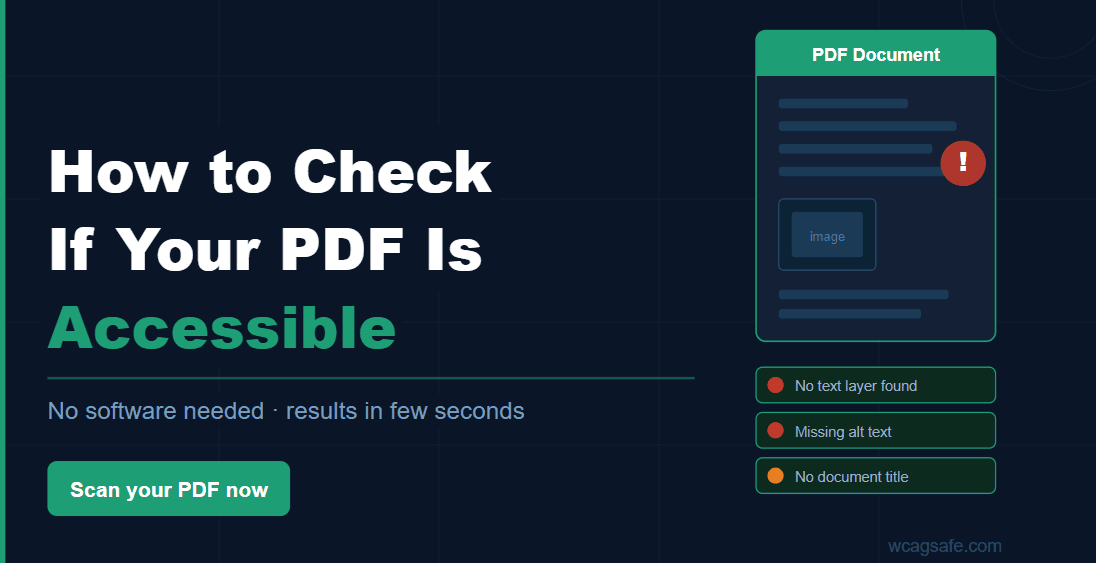
How to Check If Your PDF Is Accessible
(Without Adobe Acrobat)
10 checks
Every PDF must pass these
$0 needed
No Acrobat license required
Apr 2027
Extended government PDF deadline
Most people assume that checking PDF accessibility requires Adobe Acrobat Pro — a $20/month subscription most teams do not have. That assumption lets inaccessible PDFs slip through unchecked for months or years.
The problem is real: over 8,600 ADA lawsuits were filed in 2025, and plaintiffs' attorneys increasingly include downloadable PDFs in their complaints alongside website violations. Every demand letter attorney checks your website and your linked documents. A WCAG-compliant website that links to an inaccessible PDF form is only half-compliant — and that is not a defense that holds up.
The good news: the most critical PDF accessibility issues can be identified without Acrobat, without installing anything, and without hiring an expert. This guide walks you through exactly what to check, why it matters legally, and how to run a complete accessibility check on any PDF — directly in your browser.
Why PDF Accessibility Matters (and What Happens When You Ignore It)
PDFs are everywhere: government forms, university course packets, healthcare intake documents, financial statements, and employee handbooks. If they are inaccessible, they carry legal liability under the Americans with Disabilities Act — the same liability as an inaccessible website.
Government agencies
The DOJ's ADA Title II final rule (deadline extended to April 26, 2027) explicitly requires all online documents — including PDFs — to meet WCAG 2.1 Level AA. If your agency has not audited its PDFs yet, the extended deadline is the window to do it.
Universities & colleges
The Office for Civil Rights has investigated dozens of universities specifically for inaccessible course materials — syllabi, financial aid packets, research publications. OCR settlements require full PDF remediation and ongoing monitoring, not just a website fix. See our complete guide to PDF accessibility for universities for the full enforcement picture.
Businesses & healthcare providers
Inaccessible forms, patient documents, and downloadable PDFs can trigger ADA demand letters alongside website complaints. See ADA lawsuit statistics for 2025–2026 to understand how frequently this happens and what it costs.
Bottom line: fixing your website but ignoring your PDFs is an incomplete compliance defense.
A WCAG-compliant site that links to inaccessible PDFs does not eliminate legal exposure.
What Makes a PDF Accessible?
An accessible PDF can be read, understood, and navigated by users with disabilities — including people using screen readers, keyboard-only navigation, or other assistive technology. The international standard is PDF/UA-1 (ISO 14289-1), closely aligned with WCAG 2.1 requirements for documents.
Tagged structure
A structure tree defining reading order, headings, lists, tables, and figures
Declared language
The primary language must be specified for correct screen reader pronunciation
Document title
A meaningful title in document properties — not just the filename
Alt text for images
Every informational image must have descriptive alternative text
No image-only pages
Every page must contain real selectable text — not a scanned photograph of text
Bookmarks
Documents over 9 pages must include an outline for keyboard navigation
Logical heading structure
Headings must use H1–H6 elements in order, without skipping levels
None of these checks require specialized software — just the right browser-based tool.
Why People Look for Alternatives to Adobe Acrobat
Adobe Acrobat Pro has a built-in Accessibility Checker. It is the tool most guides reference first. But there are practical reasons teams look elsewhere:
The 10 Checks Every PDF Must Pass
These ten structural checks form the foundation of PDF accessibility under WCAG 2.1 and the PDF/UA-1 specification. Checks 2–10 are all Level A — the minimum baseline. Failing any one means the PDF fails before even reaching Level AA requirements.
| # | Check | WCAG | Why It Matters |
|---|---|---|---|
| 1 | PDF/UA declaration in XMP metadata | 4.1.2 AA | Declares conformance intent — required for PDF/UA-1 |
| 2 | MarkInfo.Marked = true (tagged PDF) | 1.3.1 A | Screen readers need structure tags to determine reading order |
| 3 | Structure tree present | 1.3.1 A | Logical structure cannot exist without a structure tree |
| 4 | Document language set (/Lang) | 3.1.1 A | Screen readers use this to select the correct pronunciation engine |
| 5 | Document title set | 2.4.2 A | Empty or filename-only titles are not meaningful |
| 6 | No image-only pages | 1.1.1 A | Scanned pages are completely invisible to screen readers |
| 7 | Alt text on all Figure elements | 1.1.1 A | Images without alt text convey nothing to blind users |
| 8 | Alt text is descriptive — not generic | 1.1.1 A | "image.jpg" or "figure" is not meaningful alt text |
| 9 | Bookmarks present (documents over 9 pages) | 2.4.1 A | Long documents without bookmarks require reading every page |
| 10 | Heading levels not skipped (H1–H6) | 1.3.1 A | Skipped levels break screen reader document navigation |
What Each Failed Check Actually Means
Understanding what each failure means in practice helps you prioritize which PDFs need fixing first and why.
Not Tagged (MarkInfo.Marked = false)
CriticalThe most common failure and the most serious. An untagged PDF has no structural information. Screen readers may extract raw text but cannot determine reading order, distinguish headings from body text, or identify images. This typically happens when documents are generated by printing to PDF rather than exporting through an accessibility-aware path.
No Structure Tree
CriticalEven if a PDF is marked as tagged, the underlying structure tree may be empty. Screen readers have nothing to navigate. This often occurs with older PDF generation tools or when scanned images are batch-converted without proper tagging.
Missing Document Language
HighA single metadata field — absent from a surprisingly large percentage of published PDFs. Without it, screen readers guess at pronunciation — sometimes correctly, often not — particularly for technical terms, proper nouns, and numbers.
Image-Only Pages
CriticalWhen a physical form is scanned to PDF without OCR processing, each page is a raster image. There is no text layer. A screen reader reads nothing at all. This is one of the most frequently cited failures in OCR complaints against universities and in ADA demand letters to healthcare providers.
Missing Alt Text on Figures
HighAny image tagged as a Figure must have a description. Charts, diagrams, photographs, and logos without alt text are completely opaque to screen reader users — they cannot tell the image exists, let alone what it shows.
Generic or Blank Alt Text
HighAlt text that reads "image," "figure," a raw filename like "chart_Q3.png," or an empty string is technically present but functionally useless. Good alt text describes what the image shows and why it is relevant in context. "Bar chart showing Q3 revenue by region" is useful. "Image" is not.
Skipped Heading Levels
MediumA document that jumps from H1 to H3 tells screen readers a level is missing — and many will skip content or misread the structure entirely. Heading levels must follow a logical, unbroken hierarchy throughout the document.
How to Check PDF Accessibility Without Adobe Acrobat
WCAGsafe's PDF accessibility scanner runs all 10 checks directly in your browser — no installation, no license, no file upload needed. It works with any publicly accessible PDF URL.
Scan your website
Run a website scan using WCAGsafe. Every PDF linked from the scanned pages is automatically detected and listed in your report.
Open the PDFs tab
All detected PDFs appear with checkboxes in the PDFs section of your report.
Select PDFs to check
Pro plan: up to 3 PDFs per report. Agency: up to 25 PDFs with PDF/UA compliance check.
Click "Scan PDFs"
The tool fetches each PDF and runs all 10 checks using pdfjs-dist — the same open-source engine built into Firefox and Chrome.
Review results
Results appear in a collapsible panel for each PDF — showing pass, fail, or warning for every check, with page-level detail where applicable.
Results are saved automatically
You can return to your scan report at any time without re-running the PDF check.
Pro & Agency: PDF/UA Compliance Check
After running the general scan, Pro and Agency users can trigger a full PDF/UA-1 conformance validation — a deep conformance check that goes beyond the 10 structural checks, catching font encoding errors and detailed structure rule violations. Use this before making formal compliance claims.
Who Needs to Run PDF Accessibility Checks
Universities & Colleges
Syllabi, financial aid forms, application packets, and research publications are routinely published as PDFs. OCR investigations specifically cite inaccessible course materials — and a settlement requires a documented corrective action plan, not just a promise to fix things.
Government Agencies
Every form, policy document, report, and public notice posted online must be accessible under the ADA Title II mandate. PDFs are typically the last category reviewed and the most likely to still be failing.
Healthcare Providers
Patient intake forms, consent documents, discharge instructions, and insurance explanation-of-benefits letters must be independently accessible to patients using screen readers.
HR & Legal Teams
Job applications, employee handbooks, benefits summaries, and onboarding documents fall under ADA Title I. Candidates and employees with disabilities must be able to access them without assistance.
Small Businesses
Any website that links to PDFs — menus, price lists, brochures, service agreements — is exposed if those PDFs are inaccessible. Use our ADA compliance checklist to confirm your full website and document footprint is covered.
Common PDF Failures and How to Fix Them
Most PDF accessibility failures originate in the source document — fixing at source is always faster and more reliable than editing an exported PDF after the fact.
| Failure | Common Cause | Quick Fix |
|---|---|---|
| Untagged PDF | Printed to PDF instead of exported | Word → File → Save As → PDF → Options → check "Document structure tags for accessibility" |
| Missing language | /Lang field not set in document properties | Word → File → Options → Language → confirm language before exporting |
| Missing document title | Title field left empty | Word → File → Info → fill in Title field before exporting to PDF |
| Image-only pages | Scanned document without OCR | Run OCR using your scanner software or Tesseract, then re-tag the structure |
| Missing or generic alt text | Images added without descriptions | Word → right-click image → Edit Alt Text → write a meaningful description |
| Heading structure issues | Manual formatting (bold + large font) used instead of styles | Use Heading 1, Heading 2, Heading 3 in Word's style panel — not manual formatting |
Important: OCR alone is not sufficient for scanned PDFs. It adds a text layer but does not add structure tags. After OCR, the document still needs correct heading, figure, and reading-order tagging. For a broader guide to fixing accessibility failures across your website and documents, see How to Fix WCAG Violations.
Frequently Asked Questions
Can I check PDF accessibility without Adobe Acrobat?
Yes. WCAGsafe runs 10 structural accessibility checks on any PDF linked from your website — directly in your browser, no installation required. For a full PDF/UA-1 conformance validation, Pro and Agency plans include an advanced conformance check on demand.
What is the difference between a basic PDF check and a PDF/UA check?
A basic structural check identifies the most common failures: missing tags, missing language, missing alt text, scanned pages, and broken heading structure. A PDF/UA-1 check validates full conformance with ISO 14289-1 — catching additional issues like font encoding errors and detailed structure rule violations that go beyond the 10 core checks. Use the structural check as a first pass; use the PDF/UA check before making formal compliance claims.
Does fixing website accessibility also fix PDF accessibility?
No. PDF accessibility is entirely separate. A WCAG-compliant website can still link to completely inaccessible PDFs. Any PDF you publish online needs to be checked independently.
Are scanned PDFs always inaccessible?
A scanned PDF without OCR is always inaccessible — it contains no text, only images. A scanned PDF with OCR applied has a text layer, but that layer still needs correct structure tags for reading order and headings. OCR is necessary but not sufficient on its own.
What WCAG criteria apply to PDFs?
The main Level A criteria: 1.1.1 (non-text content / alt text), 1.3.1 (info and relationships / tagging), 2.4.1 (bypass blocks / bookmarks), 2.4.2 (page titled), and 3.1.1 (language of page). Level AA adds requirements including color contrast (1.4.3) and text resizing (1.4.4).
How often should PDFs be checked?
Check every new PDF before publishing it. Re-check when the source document is updated. For organizations publishing large numbers of PDFs — universities, government agencies, law firms — a quarterly audit of all linked documents is a practical baseline.
Check Your PDFs for Accessibility Issues — Free
WCAGsafe detects every PDF linked from your website and runs 10 structural accessibility checks directly in your browser. No Acrobat license. No installation. Results in minutes.
No credit card required · Works with any public PDF URL · WCAG 2.1 Level A & AA criteria
Related Guides
ADA Lawsuits
ADA Lawsuit Statistics (2025–2026): Data, Trends, and What Businesses Must Know
ADA Compliance
ADA Title II Deadline Extended to 2027–2028 — Is Your Website Ready?
WCAG Guide
How to Fix WCAG Violations: The Complete Guide for Non-Developers
ADA Compliance
ADA Website Compliance Checklist for Small Businesses in 2026
The Bottom Line
PDF accessibility is not a niche concern — it is the same legal obligation as website accessibility, and it is frequently the gap that turns a fixable situation into a demand letter. The ten checks covered in this guide catch the failures that regulators, attorneys, and OCR investigators look for first.
You do not need Adobe Acrobat to find them. You need the right tool, a clear checklist, and a plan to fix at source before publishing. To understand the full scope of what accessibility compliance involves beyond PDFs, see our ADA compliance checklist for small businesses — the same principles apply whether you are managing a handful of pages or hundreds of documents.